Getting Started

How to Add a Cookie Banner to Your Website

Welcome to CookieYes! This guide will walk you through everything you need to know about creating a cookie banner, customisations, and implementing it on your website.

Note:

If you signed up on CookieYes before 15 March 2022, refer to this setup guide to implement a cookie banner on your website.

To get started with CookieYes, create your account.

After you sign up, you will be directed to a setup screen. Follow the instructions below to add a cookie banner to your website.

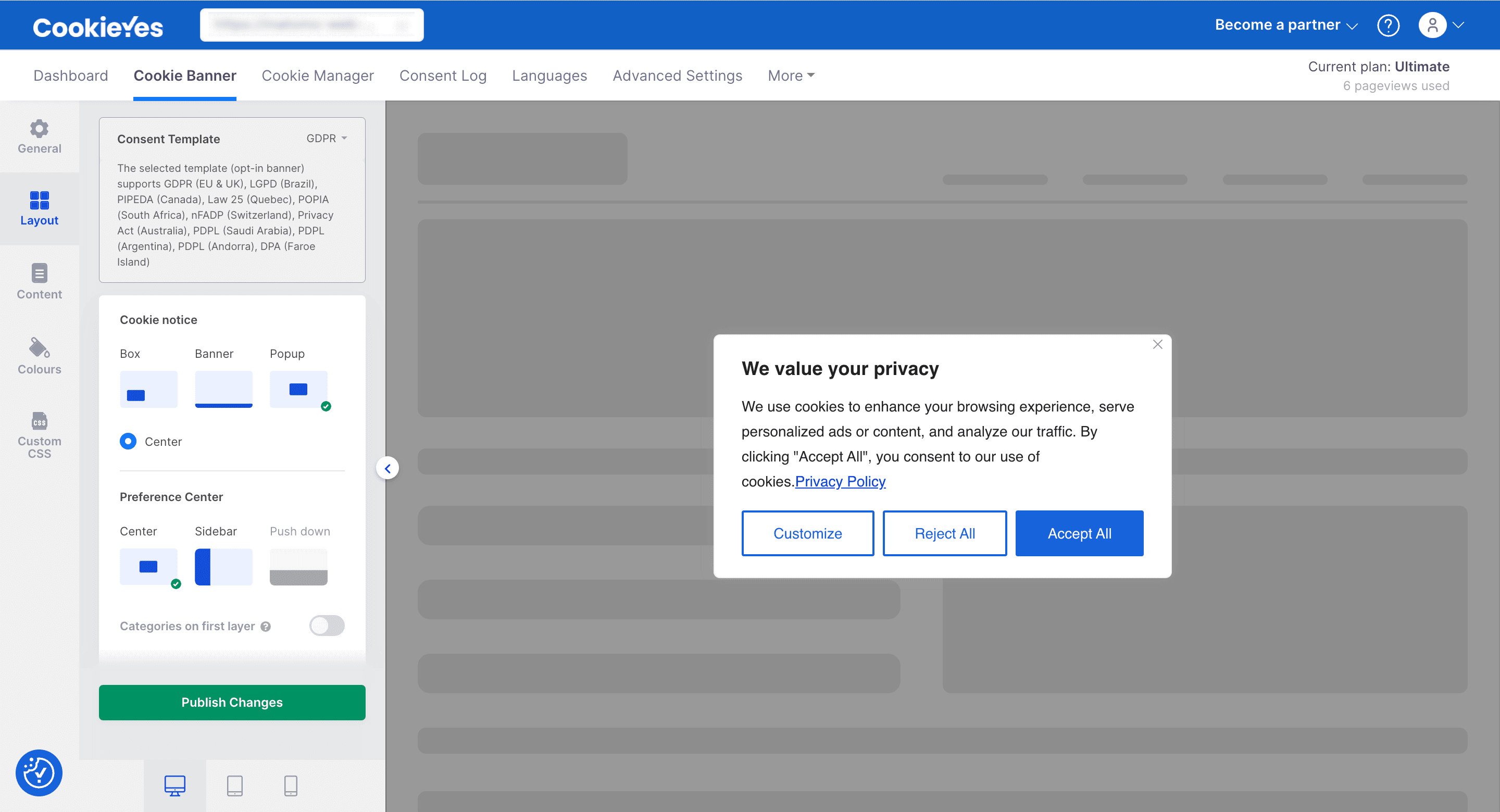
Select a cookie banner layout from the options available: Box, Banner and Popup.

Note:

Pro and Ultimate plan users will have access to the Popup template.
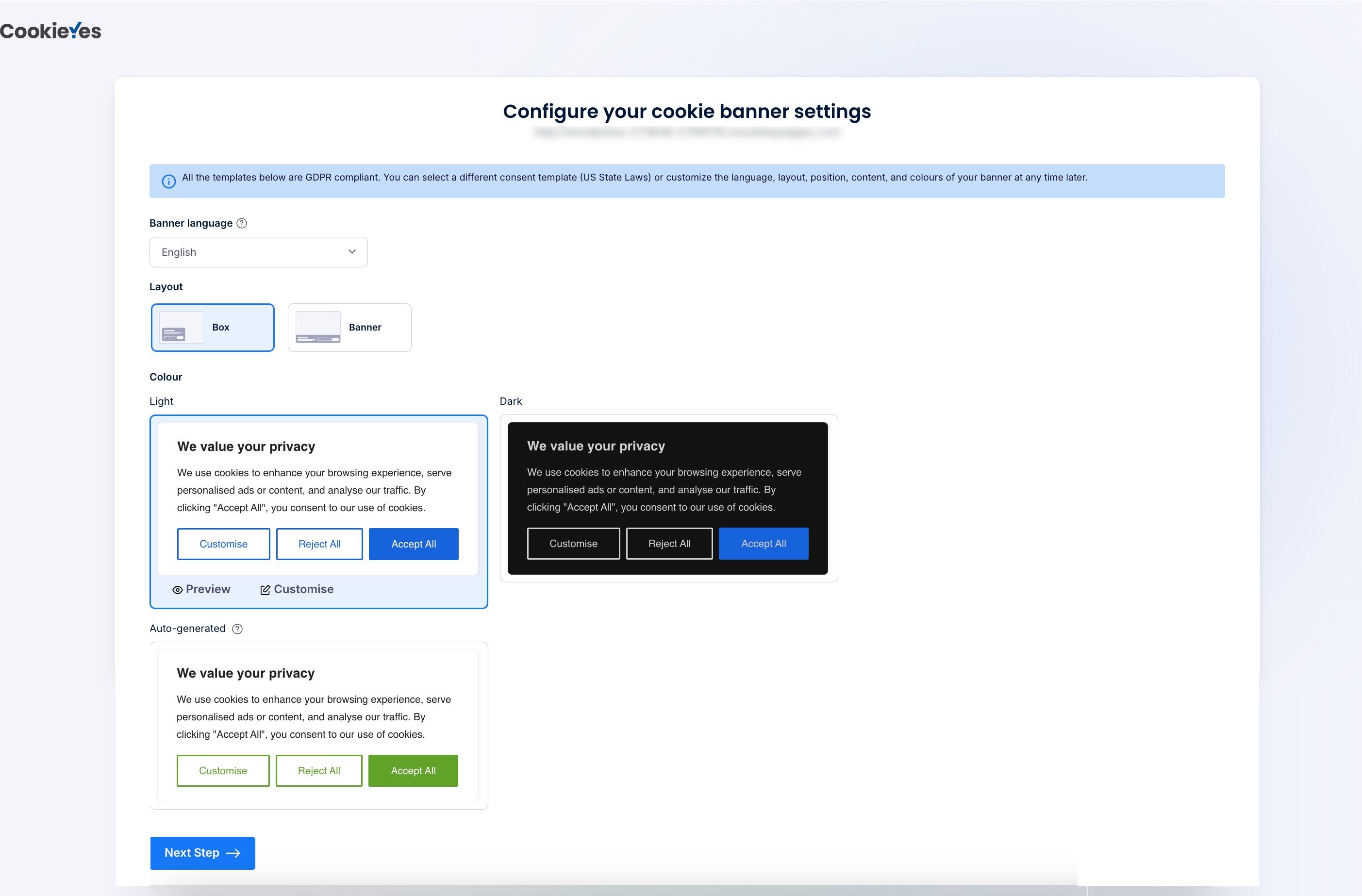
  • You can also select the Banner Language of your cookie banner. You will be able to edit this and add multiple languages later.
  • You can choose any banner template from the default light and dark themes, and if you want to further customise it, click Customise beneath to tailor it to your specific requirements. .
  • You may choose the Auto-generated Template layout, which is auto-recommended based on your website’s colour scheme.
Pro Tip:

To implement your cookie banner faster, you can simply proceed to Step 4 with the default layout that you have chosen. You can customise the cookie banner at any time later via the Dashboard > Cookie banner. You can refer to Step 2 in this guide to do the customisations.

Step 2. Customise your cookie banner
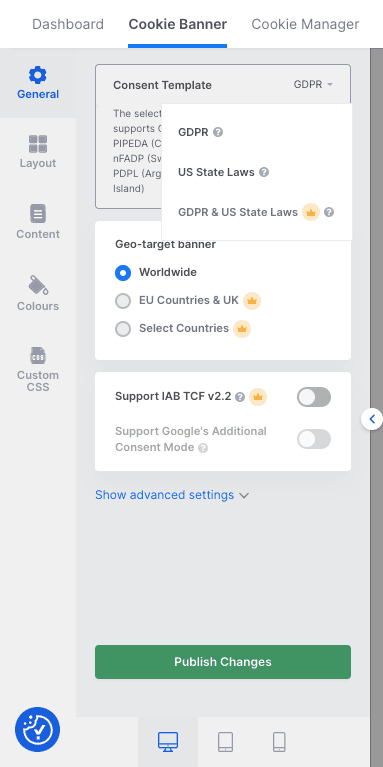
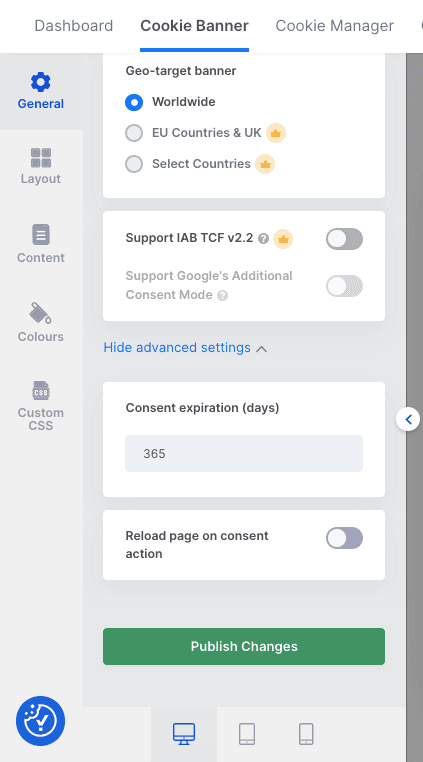
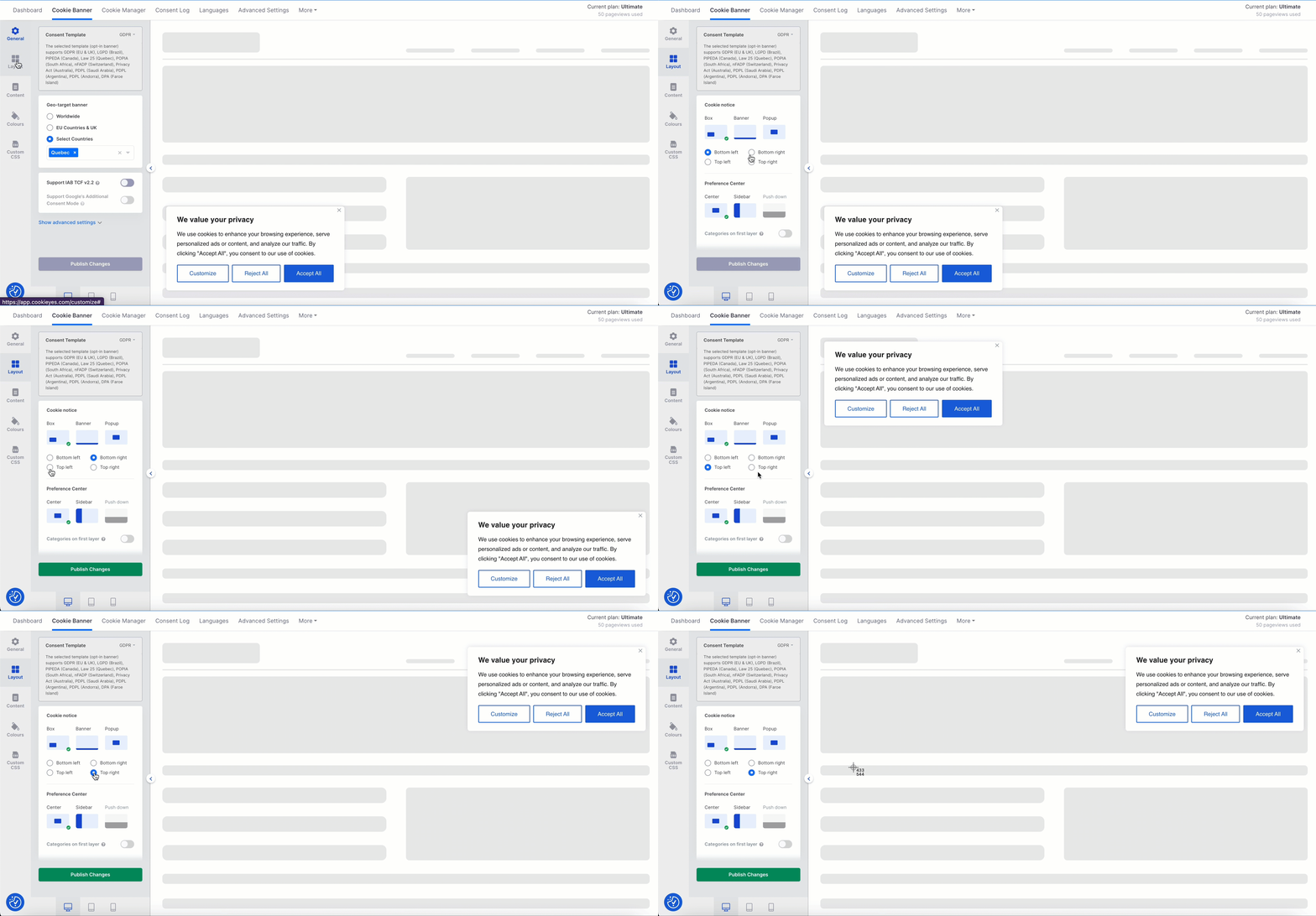
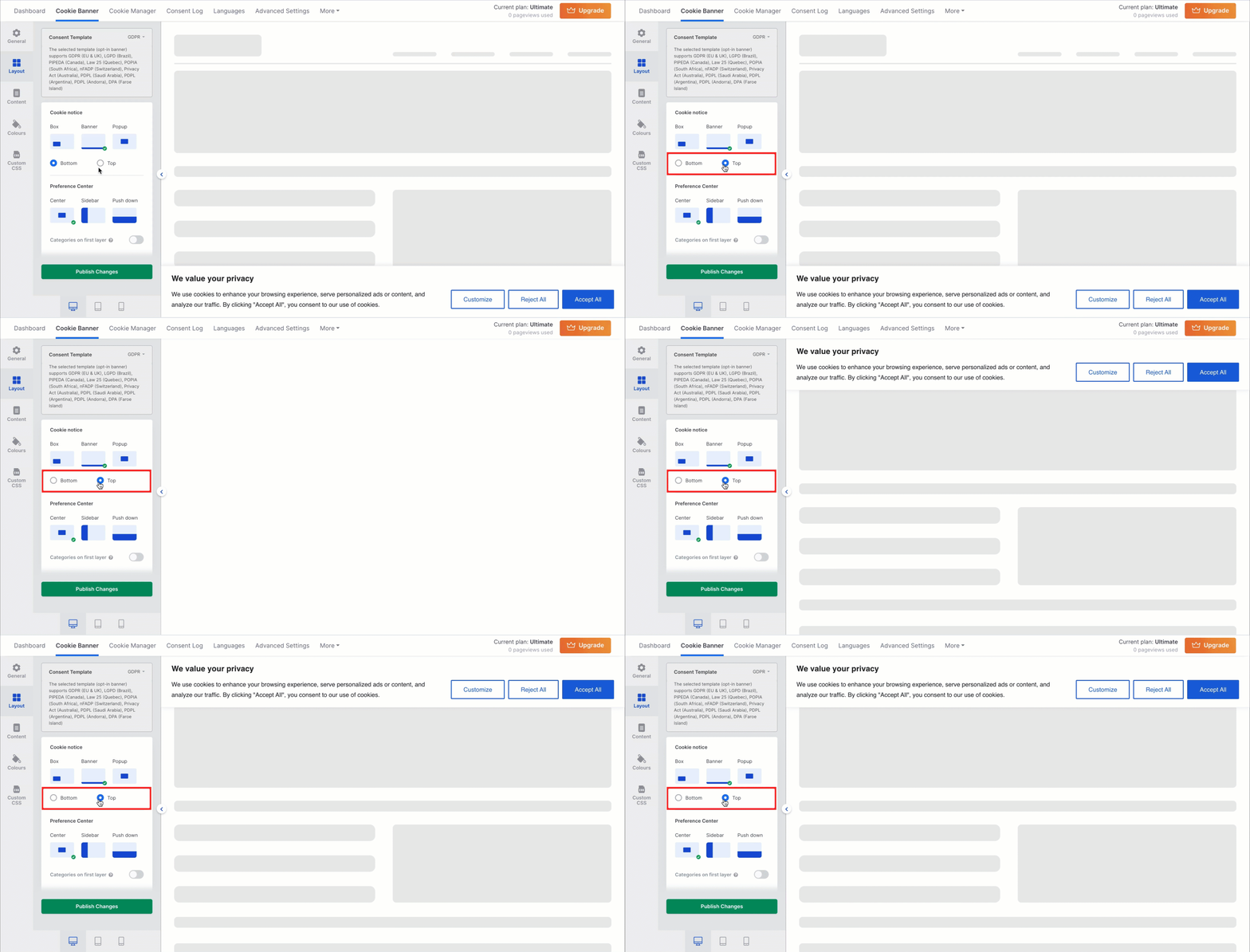
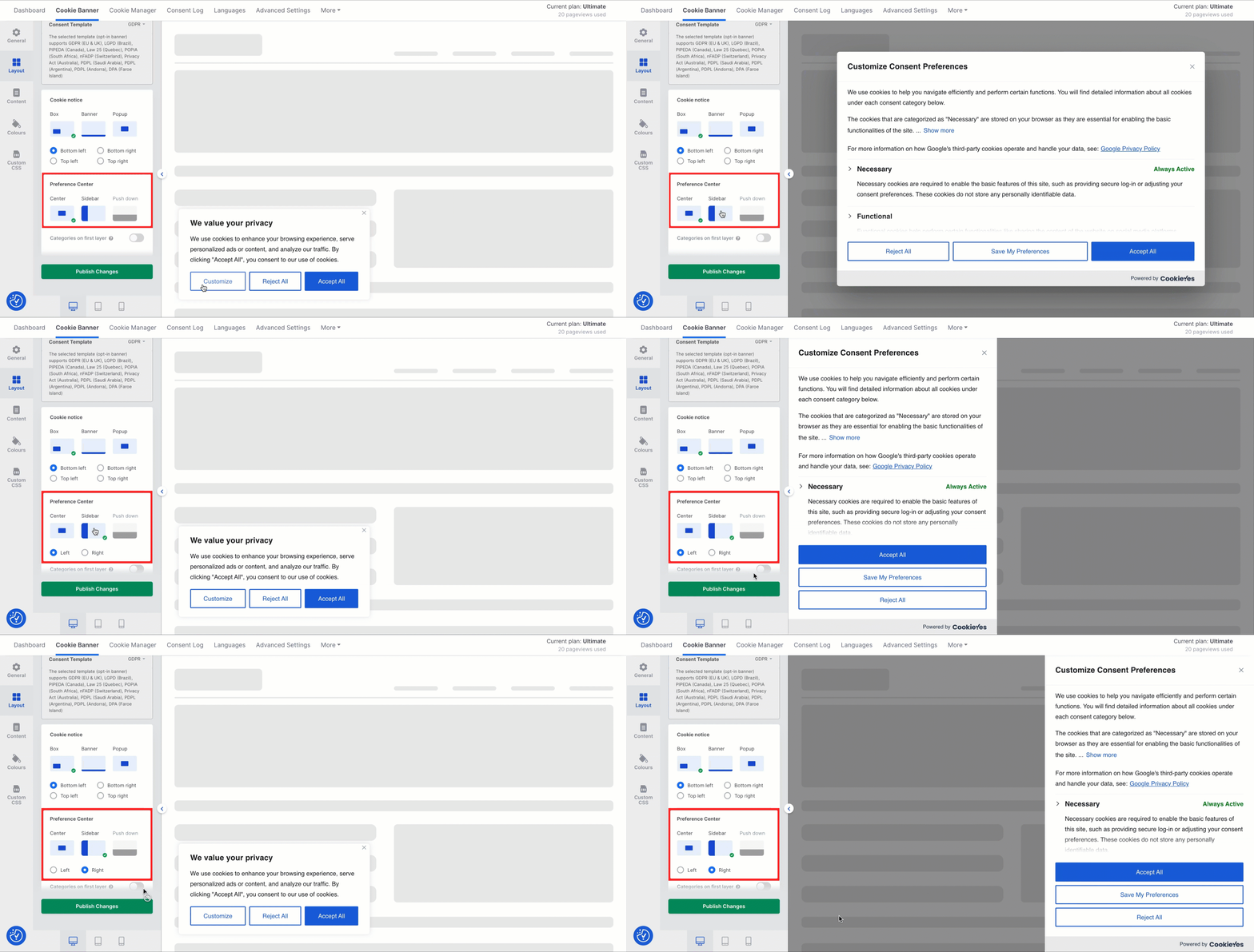
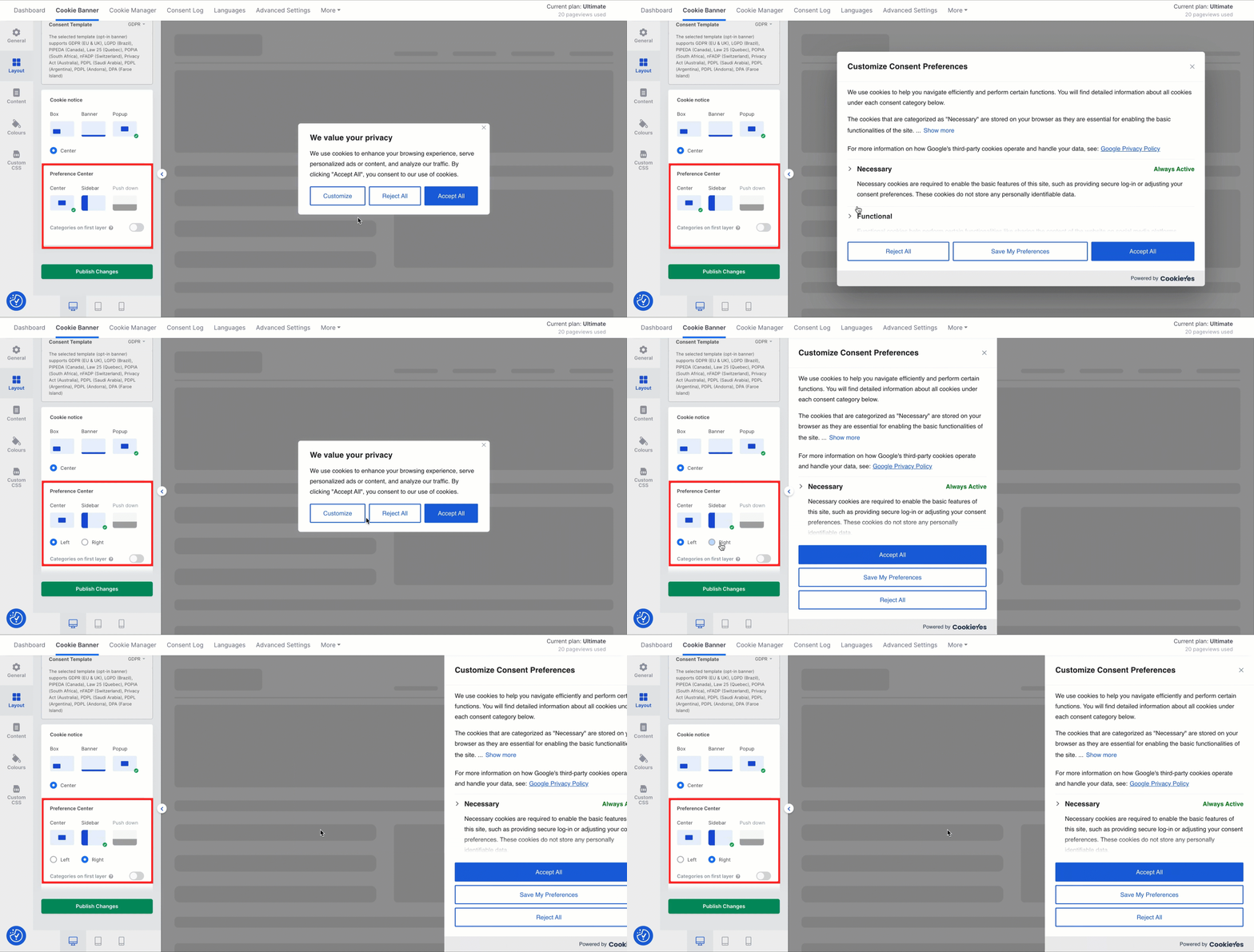
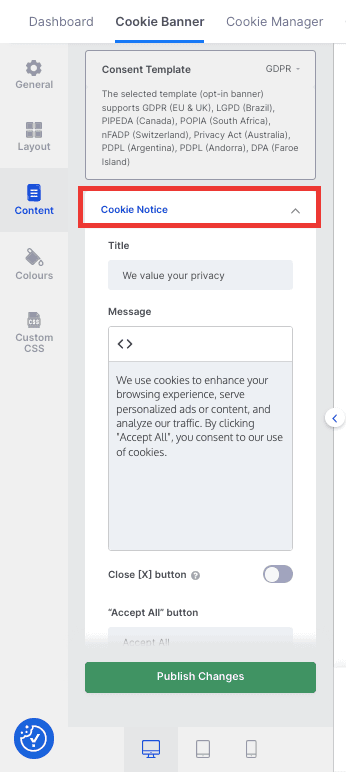
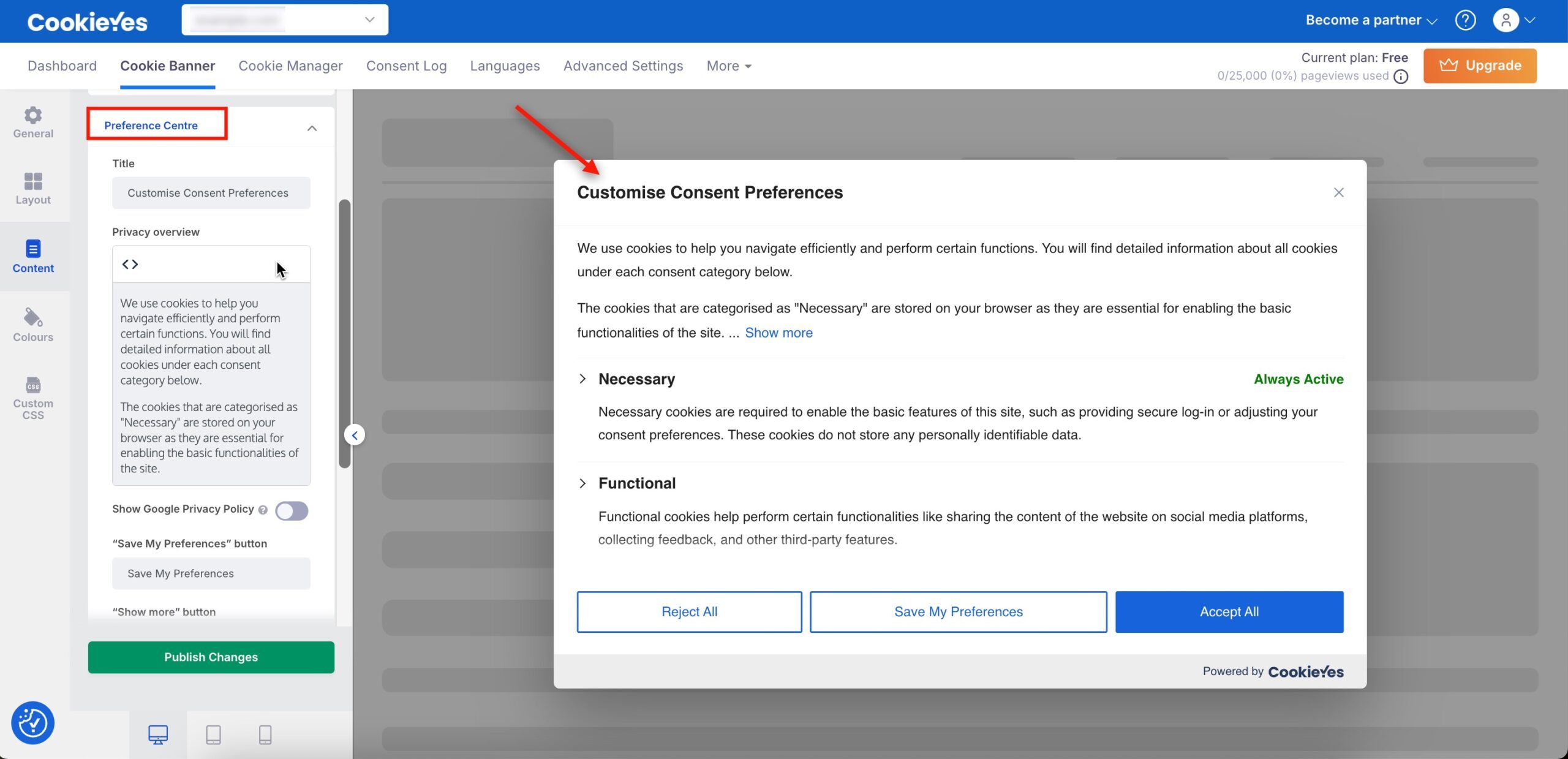
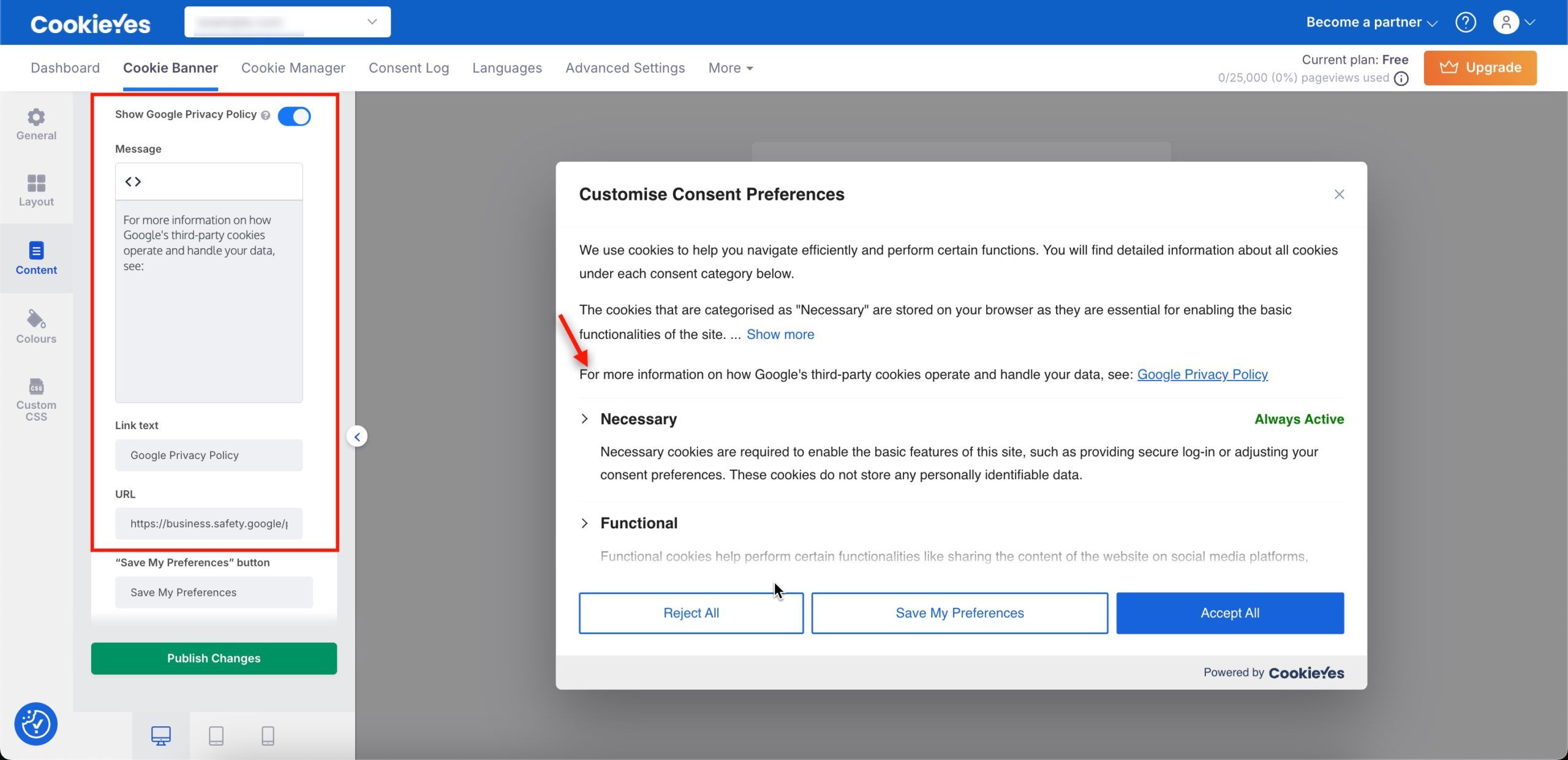
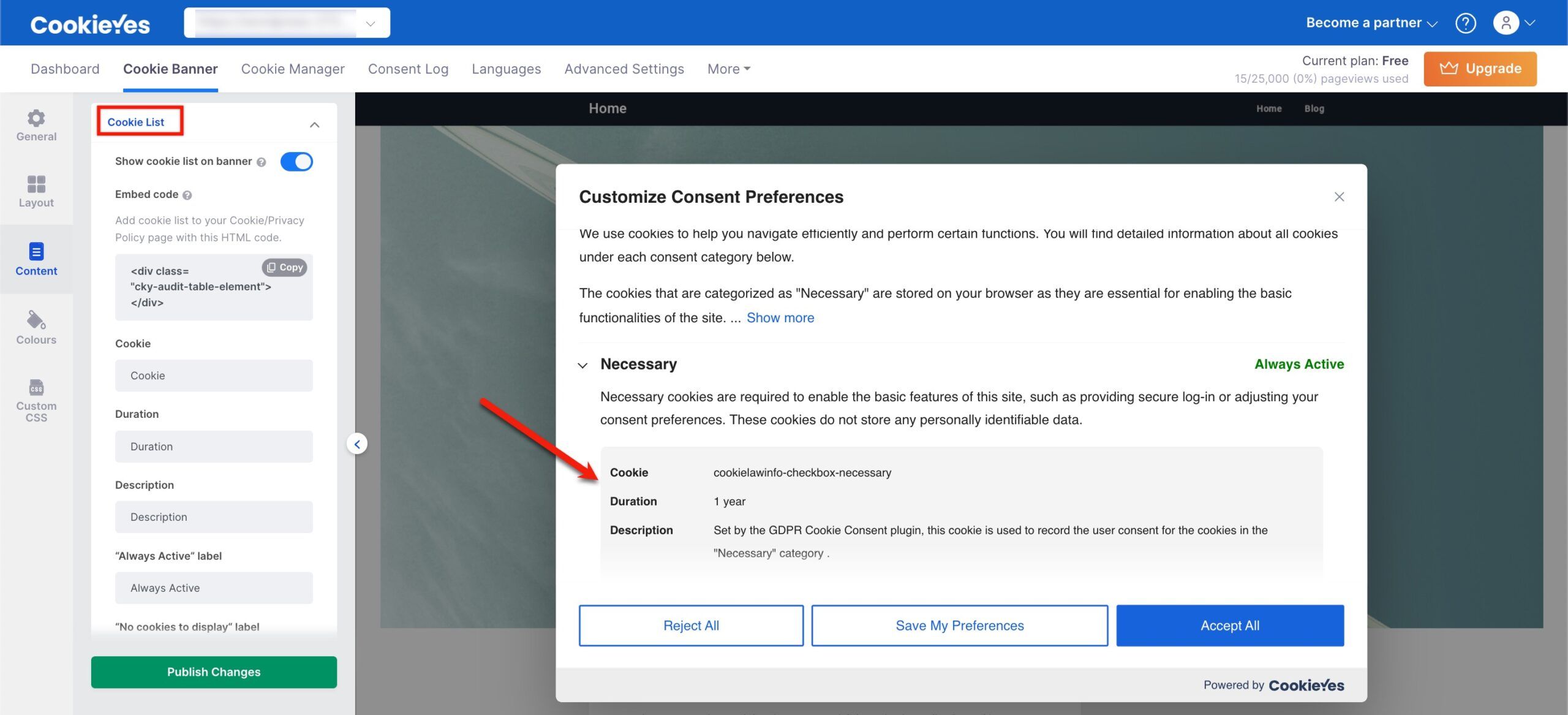
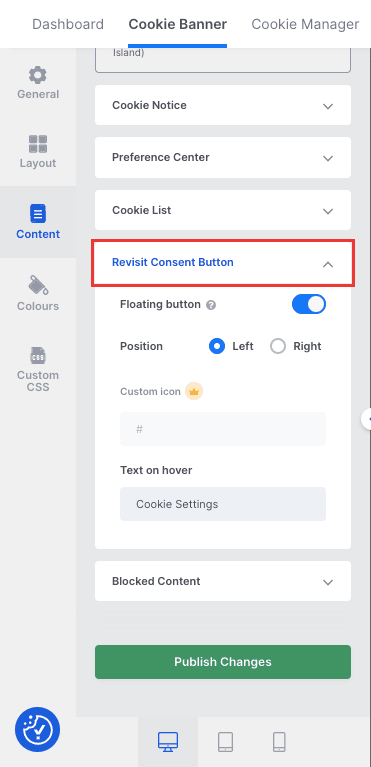
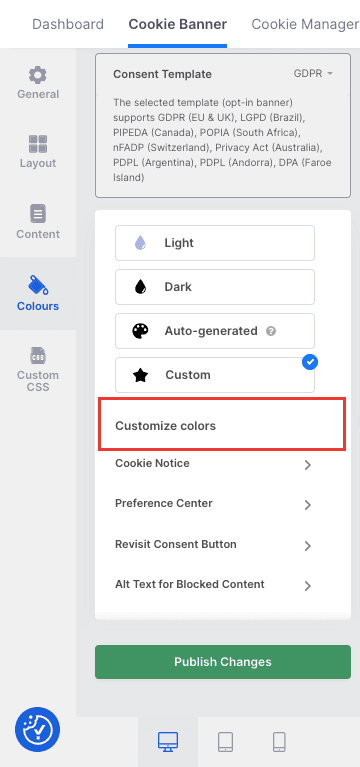
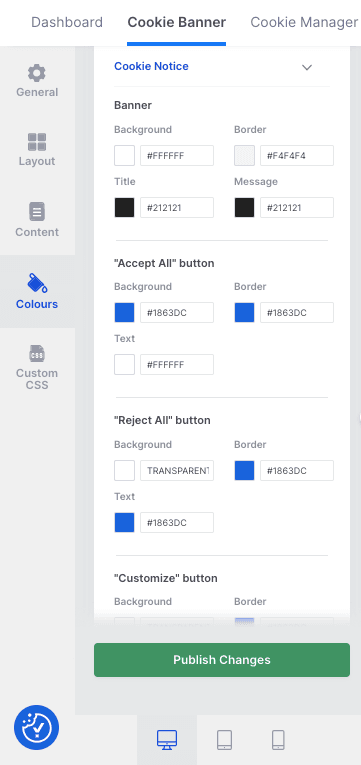
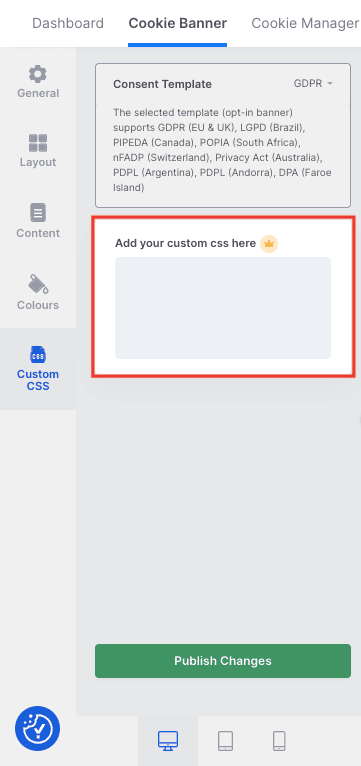
When you click on Customise a panel will appear where you can customise the banner as per your liking. Below, find the step-by-step instructions on how to customise your cookie banner layout, content, colour and add custom CSS.
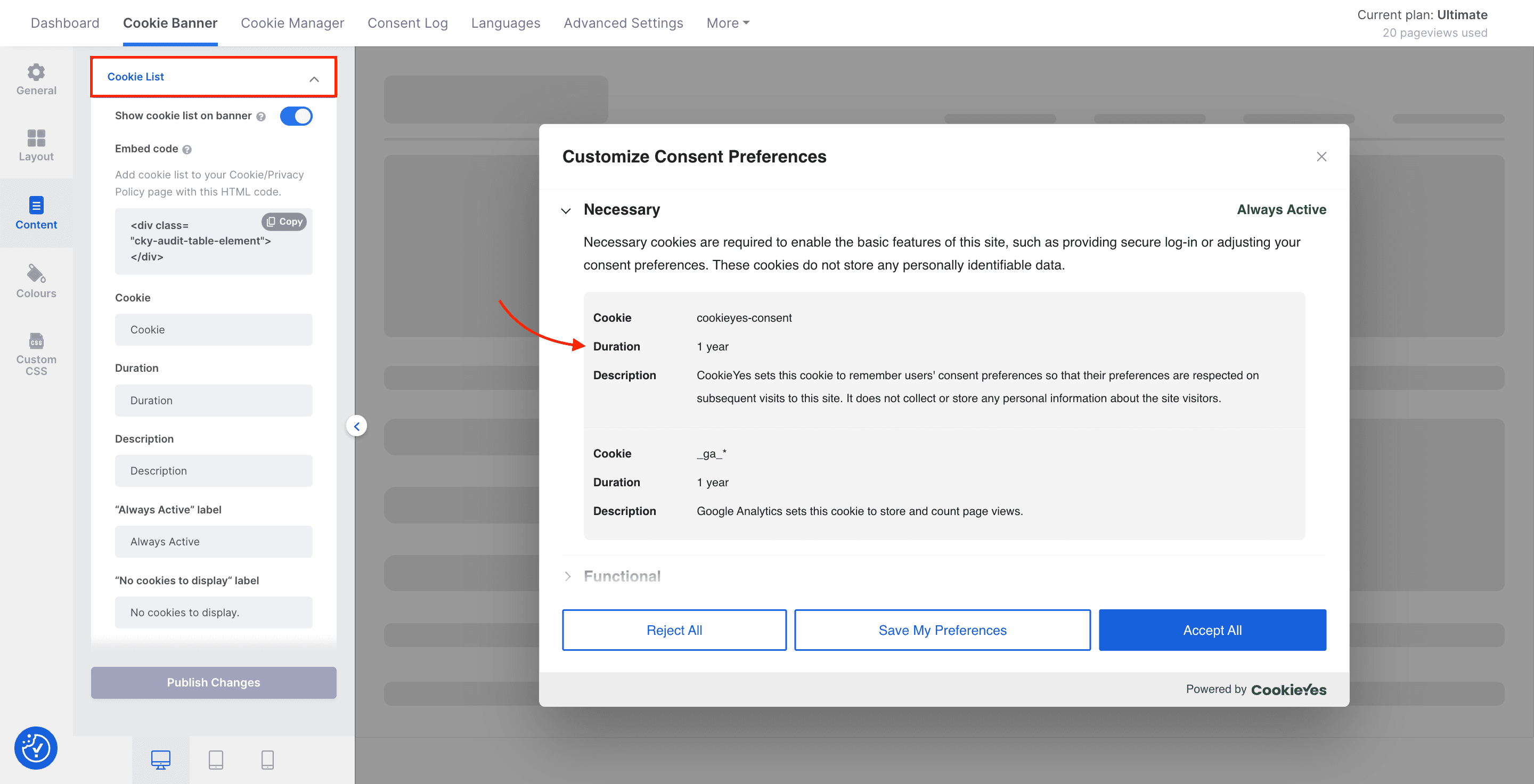
  • After you have done the required customisations, you can click on Save My Template.
  • Click Next Step to proceed to the next part of the setup.

Step 3. Select an Installation Method
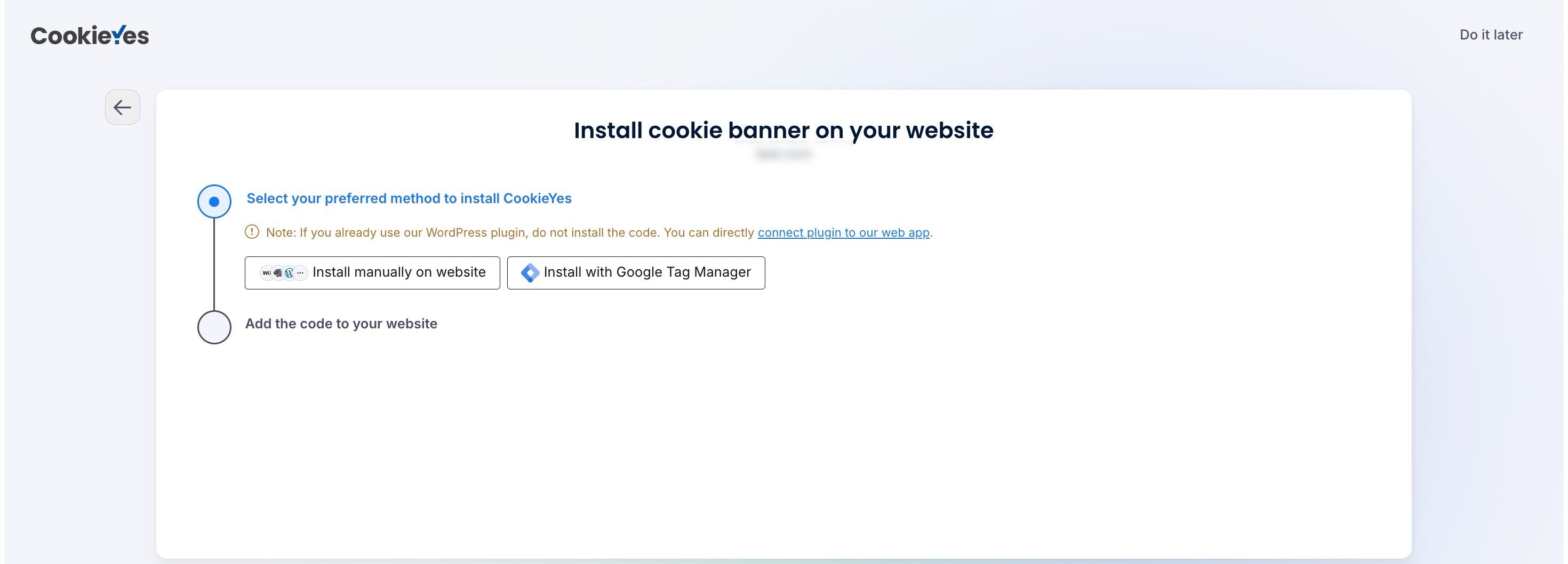
To manually install CookieYes to your website, click on the Install manually on website option.

Alternative Option:

If you prefer to use Google Tag Manager, select Install with Google Tag Manager instead. For step-by-step instructions on this method, please refer to the Getting Started with Google Tag Manager and CookieYes Guide.

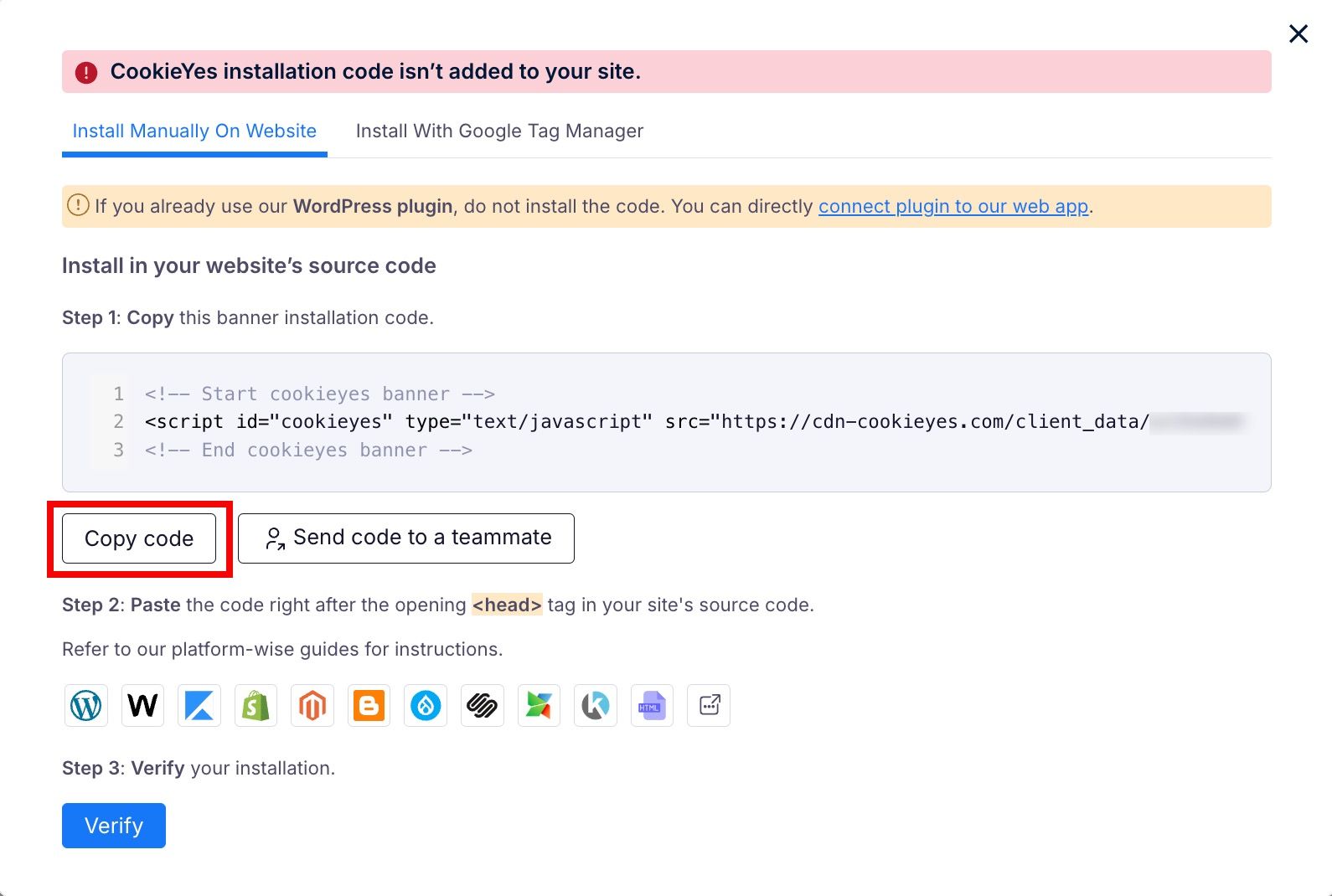
Click on Copy Code to copy the CookieYes installation code to add it to your website.

Note:

You can share the code with a developer or your team by clicking on Send code to Developer link. Enter the email address and then click on Send Instructions. The recipient will get the code and instructions via email.

  • Now you have to paste the CookieYes installation code on your website.
  • Select the CMS or website builders listed below to get the step-by-step instructions to add the code to your website.
Don’t see your CMS in the list?

CookieYes can work on all major CMS platforms and custom-coded sites. Add the installation code between the <head> and </head> tags of your website’s source code before any other script. Save changes, refresh your site and check if the banner is active on your website. If you are facing any issues, please get in touch with technical support.

Was this article helpful?